
Your desktop, sorted into fences
Pickets is a free, open-source app for Windows 10 and 11 that groups your desktop icons into movable, resizable fences, so the clutter turns into something you can actually find things in.
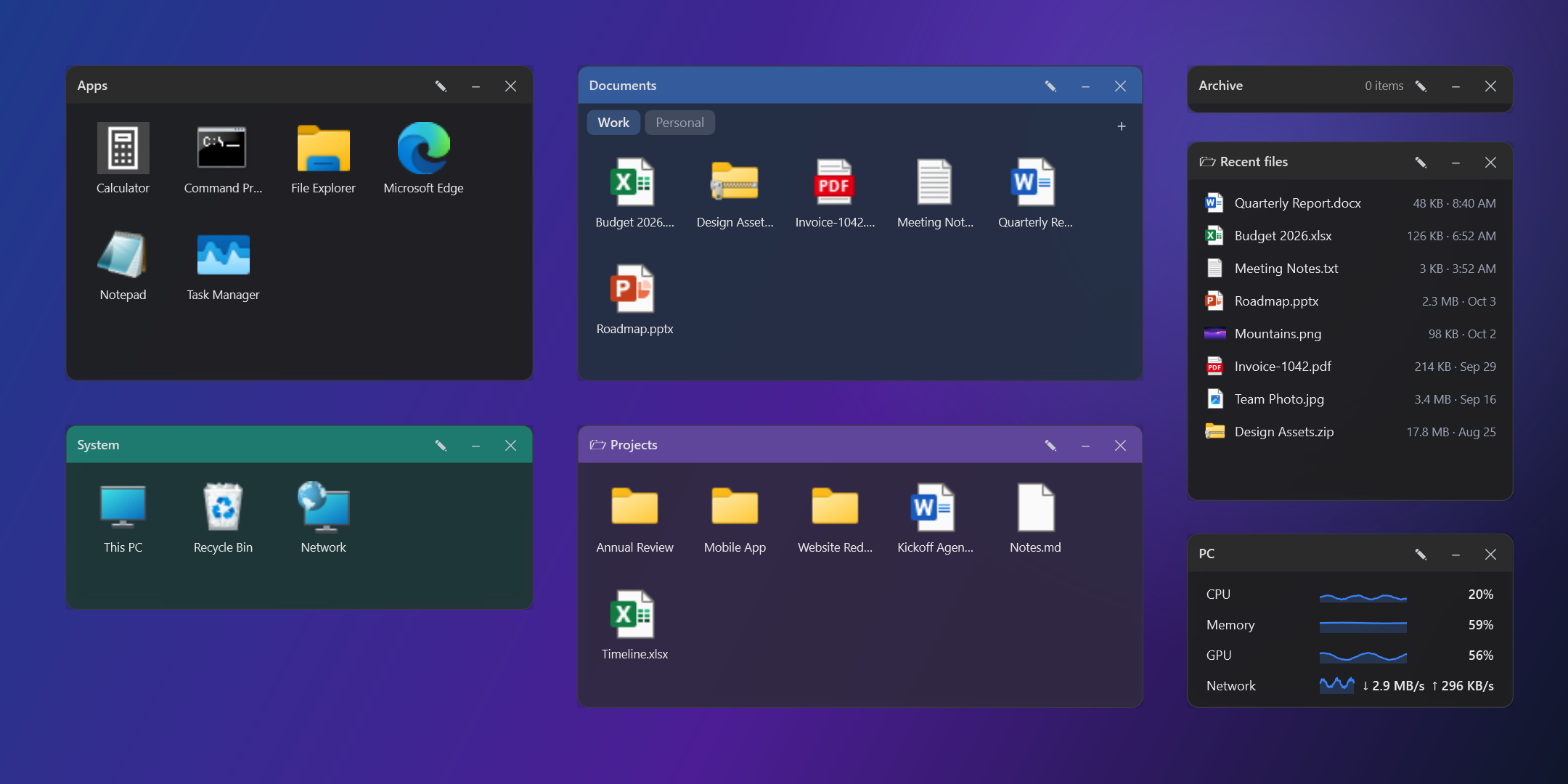
See it in action
Tabs, rolling fences up, search, Quick Look, the system monitor, backgrounds, and light and dark, in half a minute.
What it does
Your files stay exactly where they are on your desktop. A fence only decides where each item is shown, and quitting Pickets brings your normal desktop icons back.
Fences for your real desktop items
Every desktop item lives in exactly one fence. Drag tiles between fences, into Explorer or into any app.
Sorts itself
One click sorts your desktop into Apps, Documents and System. Rules send new files to the right fence automatically.
Folder portals
Show any folder as a live fence and browse into its subfolders without opening Explorer.
System monitor
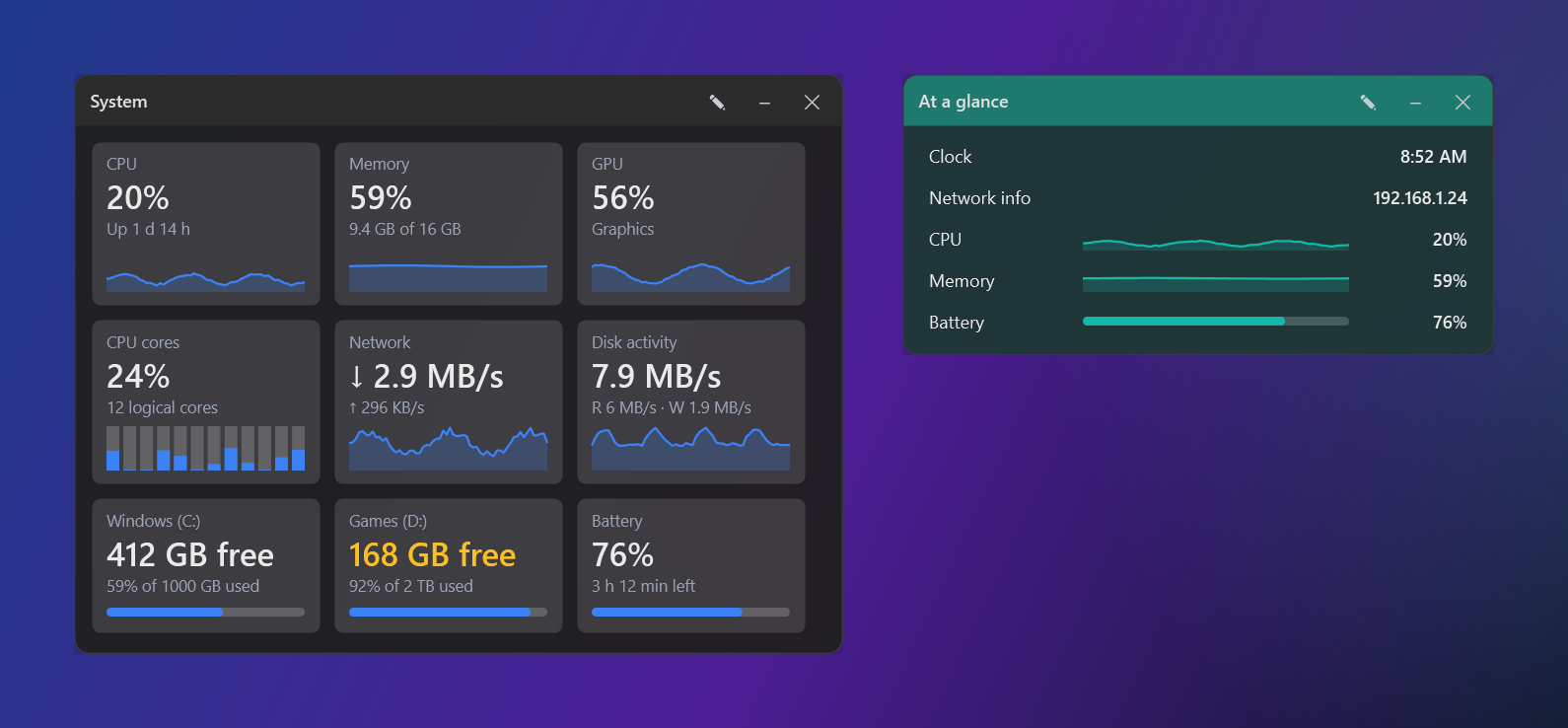
Live CPU, GPU, memory, disk, network and battery readings with graphs, in a fence you arrange tile by tile.
Search everything
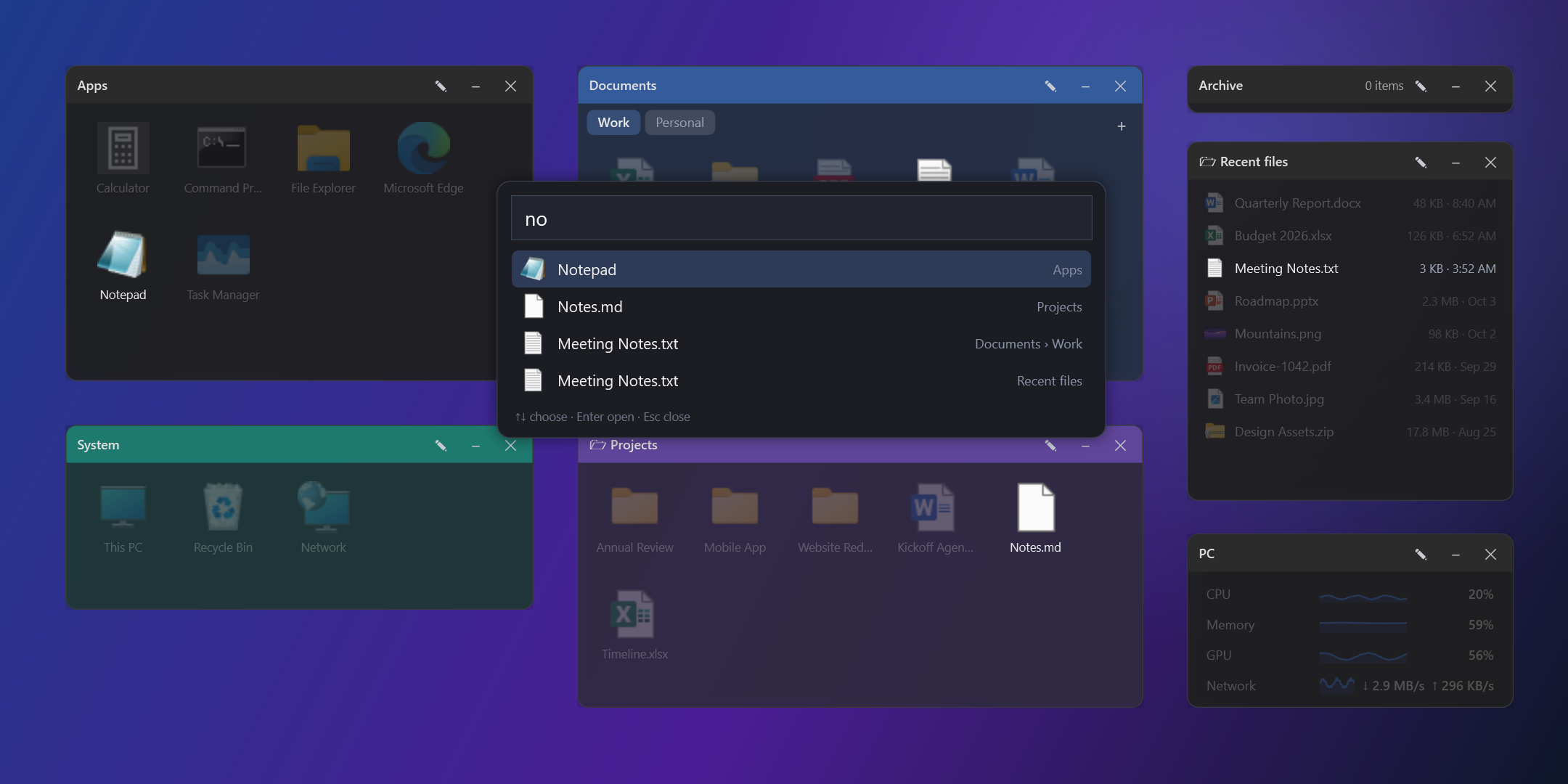
Press Ctrl+Alt+F to find any item in any fence. Ctrl+Alt+H hides or shows them all. Both shortcuts can be changed.
Tabs inside fences
Split a busy fence into tabs. Drag tiles onto a tab to move them; Ctrl+Tab switches.
Quick Look
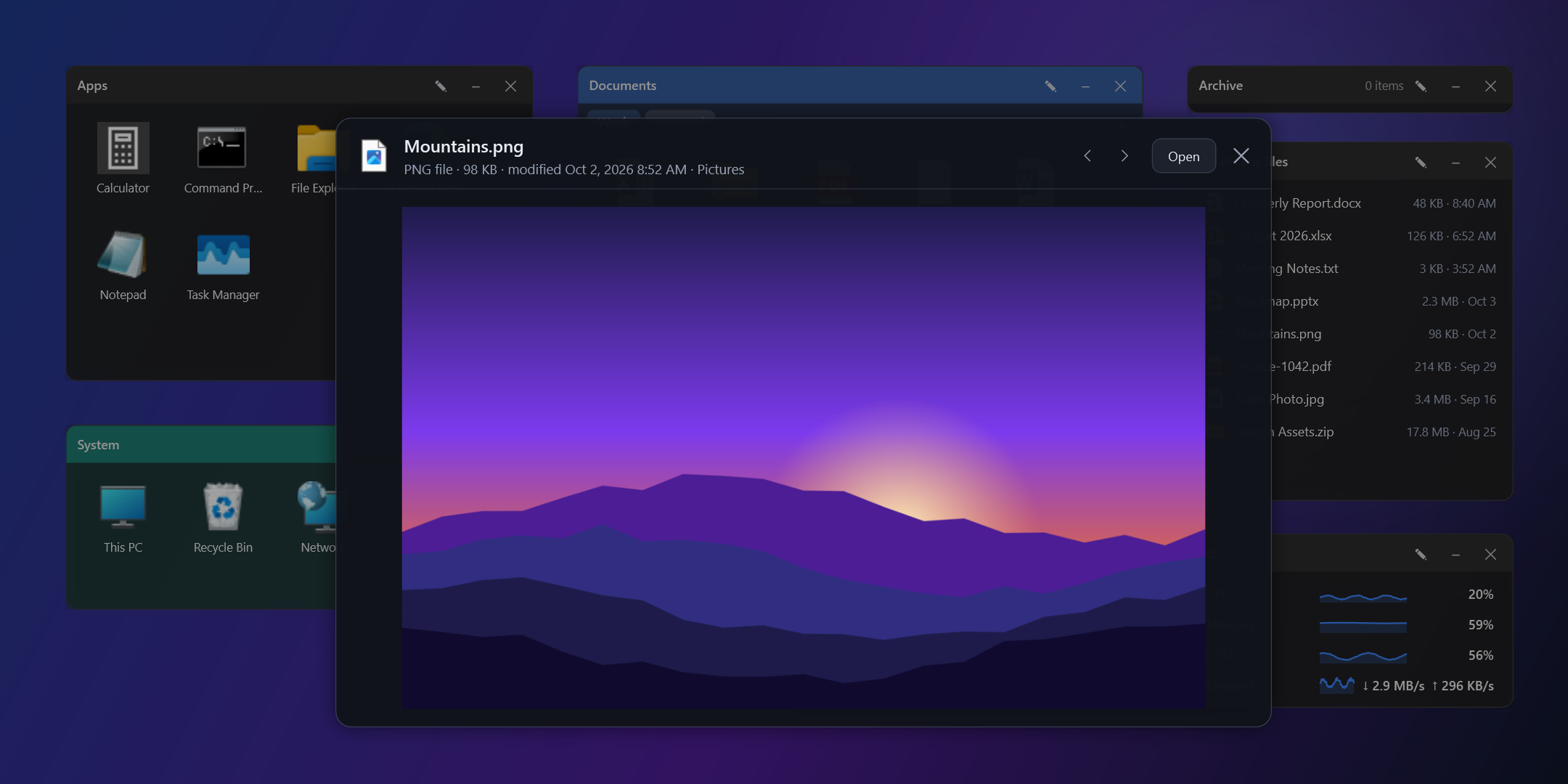
Press Space on a tile for a big preview of pictures, videos, audio and text, then use the arrow keys to flip through.
Roll up and peek
Double-click a title to roll a fence up; rest the mouse on it to peek inside.
Snap, style, lock
Fences snap to screen edges and each other. Pick colors, frosted glass and title sizes, or lock a fence in place.
Multi-monitor aware
Each fence remembers where it goes for every monitor setup, and is never left off-screen when you undock.
Layouts you can undo
Save and restore whole layouts. A snapshot is taken automatically before big changes.
Feels like Windows
Windows' own right-click menu, picture and video thumbnails, rename in place and full keyboard support.
Pictures and videos behind your icons
Give any fence a picture or a looping video background. It fades with the fence's transparency, can be darkened so labels stay readable, and pauses while the fence is hidden or rolled up.
Keep an eye on your PC
A system monitor fence shows live readings right on your desktop: CPU and each of its cores, memory, GPU, free space on every drive, disk and network speed, your connection's local address (and public one, if you turn it on), battery and the time. Add, remove, rename and reorder tiles, turn graphs off, and let warning colors tell you when something's busy, nearly full or running low. Double-click a reading for Task Manager or the matching Windows settings.
It reads only what its tiles show, straight from Windows, and stops entirely while it's rolled up, hidden or the PC is locked.
Tuned in Settings
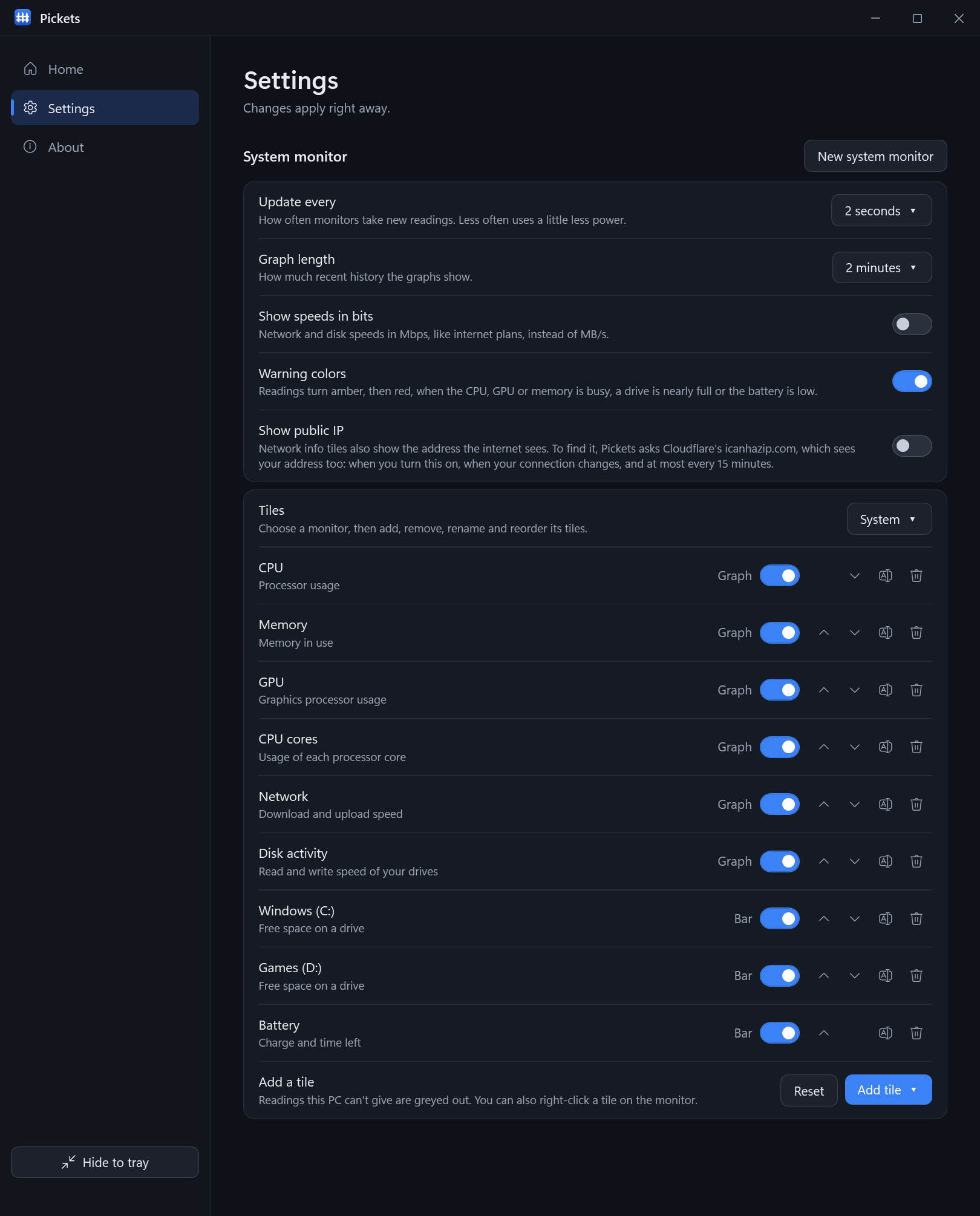
Settings has a System monitor section: choose how often monitors update and how much history the graphs show, switch speeds to Mbps, turn warning colors on or off, and edit any monitor's tiles in one list.
Everything in one place
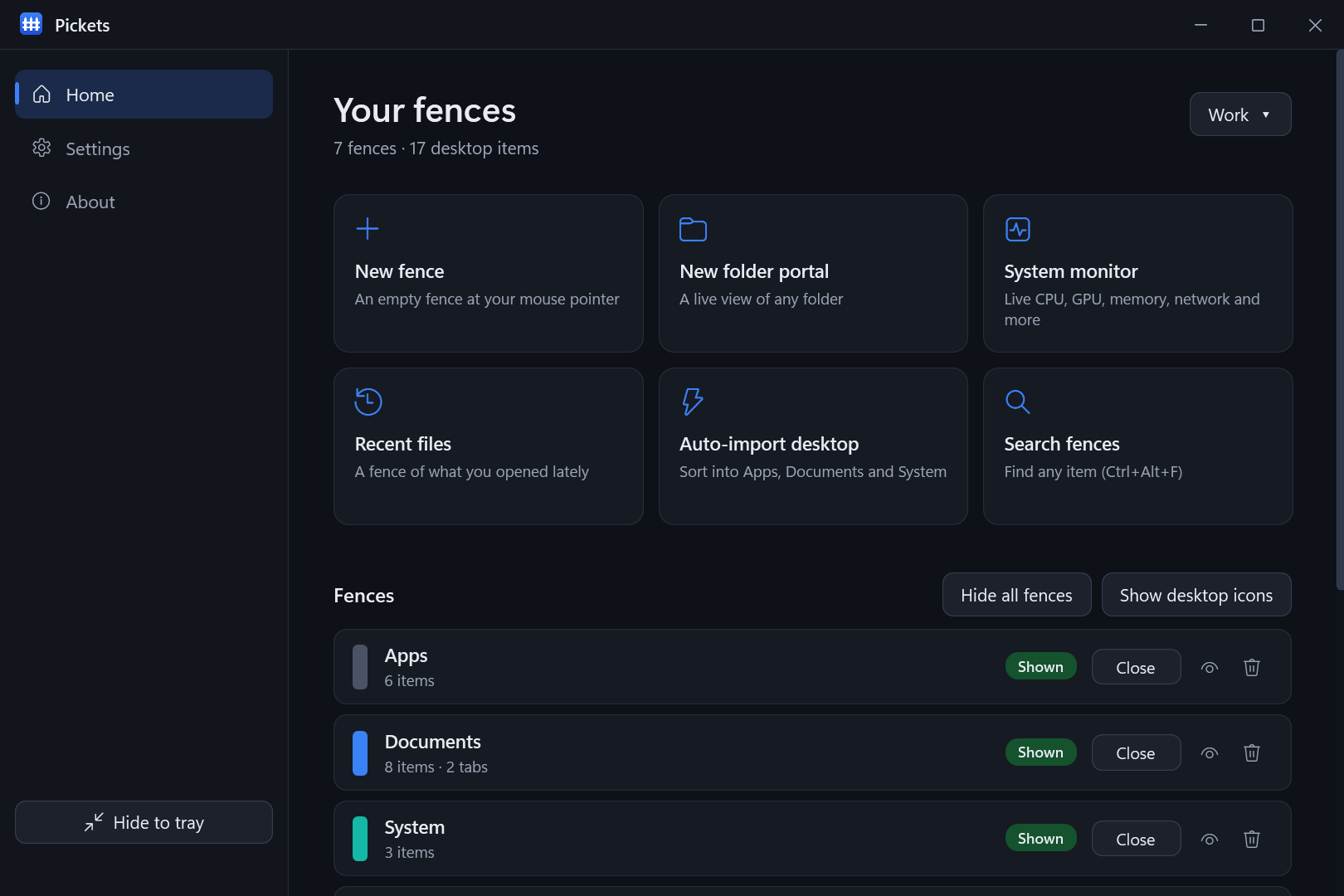
The Pickets window lists every fence and what it's doing, with one-click actions to open, close, locate or delete it, plus simple switches for every setting.
Peek without opening
Select a tile and press Space. Quick Look shows pictures, plays video and audio, and displays text and code, right over your desktop.
Find anything in a keystroke
Search lists matches from every fence, brings the fences to the front and fades out everything that doesn't match. Press Enter to open.
Download
Get the latest version from the releases page. After that, Pickets checks for new versions itself and installs them on request.
Installer (recommended)
Just for you, with no admin prompt now or for updates: Pickets-x64-user.msi
(most PCs) or Pickets-arm64-user.msi (ARM devices such as Snapdragon laptops).
For everyone on this PC: Pickets-x64.msi or Pickets-arm64.msi.
Windows asks for admin permission when installing and updating.
Portable
Pickets-x64-portable.exe or Pickets-arm64-portable.exe: one file, nothing to unzip. Put it anywhere and run it.
winget
winget install chrisdfennell.Pickets: submitted to the Windows Package Manager and available once Microsoft approves it.
Build it yourself
Install the .NET 8 SDK, clone the repository and run dotnet run --project Pickets.
Requires Windows 10 or 11. No .NET installation needed for the installer or the portable version.
Open source
Pickets is developed in the open on GitHub under the MIT license. Every release is built from a tagged commit in that repository by GitHub Actions, after the automated tests pass.
Code signing policy
Only official releases of Pickets are signed. A release is signed only when it is built by the project's GitHub Actions workflow from a tagged commit in the official repository, after the automated tests pass. Locally built copies and forks are not signed with the project's certificate.
Committers and reviewers
Christopher Fennell (maintainer). Outside contributions arrive as pull requests and are reviewed by the maintainer before merging.
Approvers
Christopher Fennell approves each release before it is signed.
What gets signed
Pickets.exe, Pickets.dll and the .msi installers in each release.
See the privacy policy for exactly what Pickets sends over the network (in short: only update checks to GitHub, which you can turn off).